by John | Nov 19, 2013 | Deezer, Instructor Tech Help, Spotify
Great question from ICI/PRO member Karin…
Hi John,
Question…can you direct me to the profiles/playlist that are more pop music? Or is there a way for me to search vs. going through each one? Thank you!
My response was: Most of our 60 Audio Class PROfiles are an eclectic composition of music, from many different genres. So there's no easy way to sort/search for playlists that are primarily pop songs. Unfortunately you will need to sample each playlist to learn if the music is to your taste.
I enjoy sampling music – what I do is:
NOTE: This all applies to Deezer as well.
- I subscribe to a bunch of playlists > and set them as Available Offline.
- Listen to each as I'm driving, working or some other activity when I'm alone.
- When I hear one I like I click the little circle with the three dots —

That opens the sharing options:
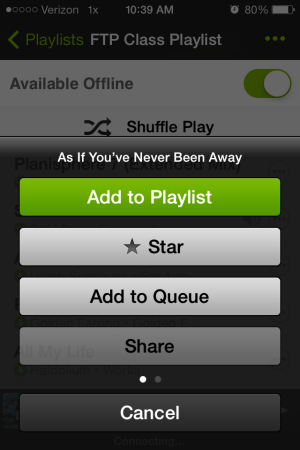
- Add to Playlist > and I add it to a special playlist I've created “Future to Use” – I keep at the top of my playlist column so it's easy to find. That's my go-to list (along with my Shazam Tags) when I'm ready to build a new class.
- Or you can “Star” the track > which adds it to your starred list > left hand sidebar has a “Starred” display option.
- Or if you swipe left, you'll see an option to; Go To Album, Go To Artist and Start Radio.

I enjoy the Radio feature a lot. Spotify will begin playing songs that are similar to the one you started with.
No telling what you'll hear (discover) next 🙂
[plulz_social_like width=”350″ send=”false” font=”arial” action=”like” layout=”standard” faces=”false” ]
by John | Nov 2, 2013 | Instructor Tech Help, Instructor Training, Spotify
Click Image to learn more about training for ICI/PRO Members.
We're planning our second live Spotify training for this Sunday 11/3 @ 5:00 central time.
The training will be conducted over Skype.
My preference is to keep the group small so we have time to answer everyone's questions = this is open to the first 8 Instructors who've emailed me a conformation – or you can leave a comment below.
We are planning to repeat these on multiple Sundays this Fall, as long as we have interest, so if you miss this week we'll get to you soon – use this link to join the notification list.
Some homework for you 🙂
- Create a free Skype account if you don't already have one.
- Sign up for the free trial of Spotify premium – I strongly suggest using FaceBook when you sign up. There is an option to register using just an email, but you'll be missing out on the ability to share music between friends and your class participants.
- Download and install the free App for your iPhone/iPad or Android Phone.
- Spend some time playing with Spotify so we can answer your specific questions during the training.
NOTE: you'll need the latest version of Skype (learned this last week) to see my screen and video. Existing Skype users check by going to: Help > Check for Updates
​
by John | Oct 20, 2013 | Instructor Tech Help, Spotify
Click Image to subscribe to the notification list.
We're kicking off our Fall Spotify online training calls this afternoon @ 5:00 Central time.
More of these training sessions to come – join the notification list here.
I'll be covering:
- Spotify basic setup on your desk top
- Phone settings – iPhone or Android
- Importing your iTunes library
- Building playlists and playlist folders
- Transfering & offline mode
- Following and Sharing
- Delivering your class music
- Tips and Tricks
- Answering your questions
We'll be doing these as long as there's interest.
Join the notification list here.
by John | Oct 13, 2013 | Instructor Tech Help, Latest News, Spotify
Chris Hawthorne just sent me a note:
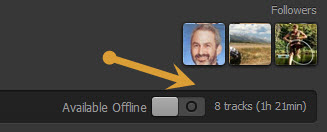
Now showing total time + hours and minutes beyond one hour!
Hi John! Have you heard the news? Apparently the Spotify timer is back. I have yet to receive the update but many instructors are already enjoying it!
Chris
Sent from my iPhone
It's about time 🙂
If you joined Spotify recently, you've had to live without any playlist timer. A major inconvenience when you want an accurate listing of total time.
Those of us joined a bit earlier enjoyed the playlist timer and were pretty frustrated when they removed it for no understandable reason. It wasn't perfect. A playlist of over 60 minutes displayed: Over One Hour, which wasn't much help when you were constructing a 90 minute endurance ride. I was creating two separate playlists; Part 1 & Part 2 so I could see the time, then combined them before class.
This new Spotify playlist timer showing both hours and minutes is a very welcome update.
To control the load on their servers, Spotify rolls out update notifications sequentially. I don't know for sure, but I wouldn't be surprised if they update their premium users first. If you're not seeing the new timer, I would first try closing Spotify if it's sitting open for a while. If that doesn't help you'll need to sit tight and wait until you see the update notification that will show on the top of Spotify page.
[plulz_social_like width=”350″ send=”false” font=”arial” action=”like” layout=”standard” faces=”false” ]
by John | Oct 11, 2013 | Deezer, iTunes & Spotify Training, Latest News, Music, Spotify
Comprehensive Training Exclusively for ICI/PRO Members.
ICI/PRO member Karin contacted me via email:
John, I still haven't gotten around to learning how to use Spotify so I'm not using the profiles yet. Is there any chance you will have a short training call to teach those like me?
Wishes for healthy & compassionate living,
Karin
Yes Karin, we will 🙂
Last fall we helped a bunch of Instructors skip the frustration of learning another new software program and quickly get comfortable using Spotify – which has become the choice of thousands of Instructors for delivering their class music.
I few will even tell you that Spotify has changed their lives!
Now that we have so many Instructors using Deezer, we'll be covering that service as well in separate training sessions.
We've created a special email list where you can receive notifications about upcoming live online training sessions.
ICI/PRO members* please use this link to subscribe to the notification list. There's a few simple questions that will help us identify which training you'll be interested in attending;
- iPhone/iPad or Android portable device – sorry no Blackberry, but the Android sessions should be very similar.
- Spotify or Deezer
- PC or Mac user
- Best day and times
Please be sure to approve the conformation email you'll receive.
We will begin offering this training as early as the weekend of 10/20 and we will continue then for as long as necessary.
Not an ICI/PRO member yet?
*Click Here to begin a Monthly Membership or Save Money with a Yearly Membership
Both start as a $1.00 seven-day trial (14¢ a day) so you can see if ICI/PRO is right for you.
If you need to know more about all of the awesome benefits of ICI/PRO you can Click Here
by John | Oct 8, 2013 | Best Practices, Instructor Training, Music, Spotify
John it just disappeared. It showed up fine on my computer and I'll swear it was on my Droid before I left to teach. But as I was ready to launch into a long threshold effort, Spotify skipped past a track, completely messing up my class.
Amy is the official Android user here in our home, me and the girls all have iPhones. Which is helpful when people rely on you to help them understand the little idiosyncrasies of a particular music software app like Spotify.
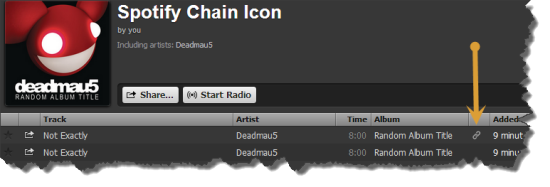
I'll admit that, although I had seen that chain icon before… I had no idea what it meant or represented. I do now 🙂
That chain icon indicates; the specific song you dragged into your playlist isn't available in that exact place, so Spotify has conveniently linked to to the actual location of the track in their database. Perfect if everything works as planned. Which, unfortunately wasn't the case with Ms. Amy today, at her noon class at CycleQuest Studio. I've never had an issue with this on my iphone, but you can never be too careful when it comes to your class music. I'd recommend checking for any any “linked” tracks and see if you can replace them.
Click the “chain” icon and Spotify will take you to the linked location. Select and drag that track into your playlist. Open the playlist and position the track next to the linked track, and then delete it.
So while we're on the topic, what do those other, funny little icons represent?

The square box with the music note symbol indicates a local track, probably from iTunes, that Spotify can't connect to its database. If you see this in your playlist be sure that you set “offline mode” while both your computer and portable devise are on the same WiFi network.
I'm still trying to understand the pinkish square with the lighting bolt. Supposedly they're tracks that Spotify had found once, but can no longer find. Funny – songs with that icon still sync to my iPhone and play both on my computer and iPhone.
Dummies.com says
| Red, broken rectangle |
Seeing this icon next to a local file means that the link (or path) to your local file is broken or not found. Perhaps iTunes moved the local file to a different folder. You can try to import the file again by browsing to the actual file and dragging it into Spotify’s Local Files pane. The broken rectangle link also shows up if a song is protected by digital rights management (DRM), so it can’t be played outside of iTunes. A notification bar appears if this is the case, and you’re prompted to remove all DRM-protected tracks from the Local Files pane. |
Which doesn't make sense to me – all three tracks from the image above play and sync without any trouble.
Do you have a better understanding?