by John | Jun 13, 2014 | Instructor Tech Help, Instructor Training, iTunes & Spotify Training, Music, Spotify

Does Spotify seem to take forever to load on your iPhone? Did it close abruptly (crash) when you hit ‘play', act sluggish or is just not as responsive as when it was new? It may have bonked. Here's how to nurse your prized device back to life…
Wikipedia describes bonking as
In endurance sports such as cycling and running, hitting the wall or the bonk describes a condition caused by the depletion of glycogen stores in the liver and muscles, which manifests itself by sudden fatigue and loss of energy. Milder instances can be remedied by brief rest and the ingestion of food or drinks containing carbohydrates. The condition can usually be avoided by ensuring that glycogen levels are high when the exercise begins, maintaining glucose levels during exercise by eating or drinking carbohydrate-rich substances, or by reducing exercise intensity.
Your iPhone, or other portable device, can experience the bonk as well. No, not because the battery is low, or you haven't fed it enough GU, but from a depletion of available system memory (RAM – Random Access Memory). This results in slow operation, freezing / crashing Apps and mysteriously frustrating actions that have you wondering why you're not using CD's anymore 🙁
Two types of fuel
As a fitness professional you no doubt are aware that your body stores two types of energy; sugars (glycogen) and fat. Regardless of your fitness level, during a long period of exercise the limited amount of stored glycogen you have is consumed. If you don't eat carbohydrates before they are exhausted, you'll bonk. Interestingly, your body can't access the energy in your stored body fat quickly enough to prevent bonking, even though you have all the fat calories needed to keep you going for days. Yes, with proper training you can improve fat usage, but watch the Tour de France next month and you'll see very fit cyclists eating frequently during each stage.
The energy that fuels your iPhone is memory:
- System memory (RAM) which runs all of the phone's operations – a small amount @ 512MB (one half GB)
- Storage memory – that's the amount of memory you choose when you bought your iPhone; 8GB, 16GB, 32GB, etc… that holds your offline Spotify music files, iTunes tracks, videos and pictures.
Your iPhone bonks when it runs low on available RAM – none of the 32GB of storage memory you paid extra for is available to help out. You don't see it, but there are a bunch of processes running continuously on your phone, eating small bits of RAM. Typically this happens when you have multiple Apps running in the background or you have too many Apps looking for updates (push notifications) or GPS location updates. You can't add any additional RAM – so the solution to prevent bonking is to free up RAM – by closing unused Apps and turning off unneeded functions will free up some additional memory.
Step one – Close Unused Apps
Did you know that clicking the Home button doesn't actually close an App? It doesn't. There's a good chance that every App you've ever downloaded and opened is still quietly running, consuming the much needed RAM to run Spotify properly. Powering down your iPhone doesn't close them either – each App needs to be closed manually.

Double click the home button and then swipe up to close Apps.
Here's how…
- Double click the ‘Home' button quickly and you'll see thumbnails of the Apps currently running.
- Scroll left/right to select an App to close.
- Swipe the thumbnail up to close it – there's no reason not to close all of them.
Step two – Do you talk to Siri?
Besides it being annoying, Siri is a bit of a RAM hog. If you're not on speaking terms, turn her off. Settings>General>Siri
Step three – Reboot Regularly
Whenever you're tired, does it seem like your mental processor doesn't operate as sharply as it does after a good night's sleep? After a long day your brain's RAM has a bunch of “stuff” running in the background that it collected during the day; problems at work, anxiety about a future event, what to get your dad for Father's Day… stuff. The best way to clear it is an 8 hour horizontal reboot.
Computers are no different. They collect “stuff” as they work, reducing the amount of RAM needed for Spotify to crossfade between songs. NOTE: cross-fading streaming tracks is actually a very neat (and memory intensive) trick.
So when was the last time you powered down your iPhone and give it a rest? I've asked people this question and mostly been told that the only time they've rebooted their phone is when the battery goes dead. Same goes with your computer, Mac or PC – they all benefit from regularly being turned off. Wait until it has completely powered down and then bring it back to life 🙂
Step four -Turn off unneeded services
Every neat little thing your iPhone does requires RAM…
- Do you really need to instantly see every new FB comment displayed on your home screen? Turn a few off: General > Settings > Notification Center.
- Location tagging is a bit creepy. Does Shazam really need to know where I am? I don't think so. Turn off all of the nonessential location tags: General > Settings > Privacy > Location Services and scroll down to see who's tracking your location. I only have Facebook (for checking in) and Google Maps turned on.
There are multiple ways to reduce RAM usage beyond this list – these should be a great start to prevent your iPhone from bonking anytime soon!
by John | Jan 10, 2014 | Deezer, iTunes & Spotify Training, Music, Spotify

Spotify is awesome for delivering your class music – at least for those of us teaching in a country where it's available. Seeing so many visitors here from Canada – where Spotify doesn't work, we decided it would be helpful to build a simple, free tool that will quickly convert a Spotify playlist into something a Deezer user can open and play!
The tool is located on it's own page that you can find here:
https://www.indoorcycleinstructor.com/free-spotify-deezer-music-track-playlist-conversion-tool/
Please note that you need a free or premium Deezer user's account before you'll see the actual tool. Click this link to login into to your Deezer account and convert away!
by John | Oct 11, 2013 | Deezer, iTunes & Spotify Training, Latest News, Music, Spotify
Comprehensive Training Exclusively for ICI/PRO Members.
ICI/PRO member Karin contacted me via email:
John, I still haven't gotten around to learning how to use Spotify so I'm not using the profiles yet. Is there any chance you will have a short training call to teach those like me?
Wishes for healthy & compassionate living,
Karin
Yes Karin, we will 🙂
Last fall we helped a bunch of Instructors skip the frustration of learning another new software program and quickly get comfortable using Spotify – which has become the choice of thousands of Instructors for delivering their class music.
I few will even tell you that Spotify has changed their lives!
Now that we have so many Instructors using Deezer, we'll be covering that service as well in separate training sessions.
We've created a special email list where you can receive notifications about upcoming live online training sessions.
ICI/PRO members* please use this link to subscribe to the notification list. There's a few simple questions that will help us identify which training you'll be interested in attending;
- iPhone/iPad or Android portable device – sorry no Blackberry, but the Android sessions should be very similar.
- Spotify or Deezer
- PC or Mac user
- Best day and times
Please be sure to approve the conformation email you'll receive.
We will begin offering this training as early as the weekend of 10/20 and we will continue then for as long as necessary.
Not an ICI/PRO member yet?
*Click Here to begin a Monthly Membership or Save Money with a Yearly Membership
Both start as a $1.00 seven-day trial (14¢ a day) so you can see if ICI/PRO is right for you.
If you need to know more about all of the awesome benefits of ICI/PRO you can Click Here
by Christine Hawthorne | Apr 30, 2013 | Instructor Training, iTunes & Spotify Training, Music, Spotify
 When I joined Spotify Premium almost a year ago, I just loved the ease of using it to create and share playlists so much that I was able to overlook some of the problems I had with it’s cluttered look and lack of social features. Now, with Spotify’s newest updates, many of those problems have been fixed, making it even easier to find and follow other people and artists.
If you haven’t already taken advantage of the update, I highly recommend it. While there is one major drawback (I’ll get to that.), I’m finding the advantages to be worth it.
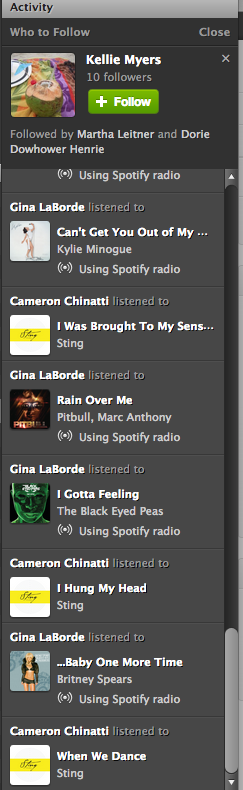
The first thing you will notice with the new update is the less cluttered look. Now it is much easier to navigate your profile page, playlists and activity sections. On the right side of your desktop screen, there is no longer a ‘favorites’ list. It has been replaced with a larger activity bar. Above the activity bar, you will find a handy ‘Who To Follow’ box. This box highlights people or artists that other people you follow are connected to-a great way to find new people to follow! Here’s a tip: If you don’t like Spotify’s current suggestion, click the ‘x’ on the top right of the box and a new suggestion will pop up.
You might also notice that the ‘Share’ and ‘Start Radio’ buttons are just above your playlist now for quick access. Tip: When you click ‘Share’, and then ‘Post To Feed’, you can add a little message that will show up on your follower’s feed. This would be a great place to share something about your playlist or a specific song in your playlist.

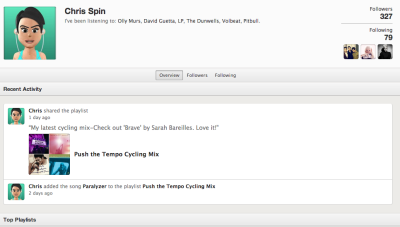
One of my favorite things about the newest update is the social section, with it’s emphasis on following others and viewing their activity. Click on a user and go to their profile page. You can view their published and followed playlists just like before AND you can now see their most recent activity and their ‘following’ activity-another great way to find new people to follow!
With all of these great new updates comes one little glitch. This one has caused instructors quite a bit of frustration. They took away the playlist timer. I can’t think of a good reason why they would do it, but they did. To get around this, I use on online timer which you can find here. It adds an extra step to my playlist preparation, and it’s kind of an inconvenience, but it really doesn't take too much longer once you get used to it.
These changes in Spotify are a step in the right direction, and I hope to see more updates and changes from them in the future. Great job on this update Spotify!
What do you think? Do you like the new updates? Is there anything you would like to see Spotify add to make your job as an instructor easier?
by John | Apr 4, 2013 | Instructor Tech Help, Instructor Training, iTunes & Spotify Training, Music
UPDATE: App developer Dave Norfleet is available to answer your questions posted below as a comment.
Schwinn Master Trainer Julz Arney showed me an interesting iPhone app when we met at IHRSA. She's been using this app to build her class playlists and was really excited to show it to me.
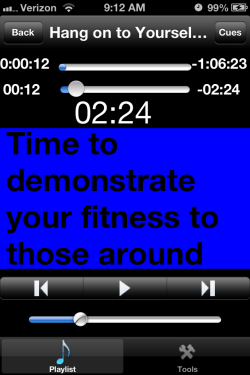
I'm very tempted to use it (instead of Spotify) simply for the class count-down timer and numbers that are big enough to read with my 52 year old eyes!
Similar to ClassBuilder, MyFitnessDJpro is the creation of developer / Indoor Cycling Instructor David Norfleet.
David's app is available in two paid versions:
- MyFitnessDJ – $0.99 includes the count-down timer and you can select from a catalog of cues.
- MyFitnessDJpro – $9.99 gives you the option to create your own cues like what's shown here.
You can also select different background colors to help you instantly understand your intended intensity. If you want , you can add multiple cues to each track and insert them at specific times. It's very entertaining to watch each new cue you've added, pop up right when you've set it – which could be set a few seconds before your change, giving you advanced notice of what's coming next.
This feature could be very helpful when you're trying to communicate a new theme or training objective in your class. Repetition goes a long way toward understanding. Having a number of reminders (to reinforce a specific / new concept) could go a long way toward keeping your message clear, and on point, without feeling you need to bury everyone with details in the first 10 minutes of class.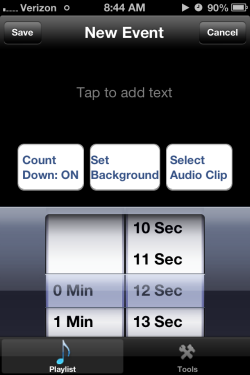
The pro version also includes an email playlist function, that you could use to fire off your music to an interested participant. David has also included an option to purchase and download some of his favorite playlists, if you need some external music suggestions.
Very cool.
If you found ClassBuilder too complex, time consuming or confusing – and yet you would like to be able to quickly add some easy to read notes to your iTunes playlist, MyFitnessDJ could be worth a look.
by Christine Hawthorne | Mar 11, 2013 | Instructor Resources, iTunes & Spotify Training, Music, Spotify
 Do you know about Spotify's Collaborative Playlist feature? It's a great way to share playlists with friends, fellow instructors and even members at your gym or club. When you use this Spotify feature, others can share, edit and add to your original playlist.
Sound interesting? It's really pretty simple. Just create a playlist in Spotify as you normally would. Then, right click (control+click if you're a Mac user like me) and you'll see a drop down box like this:
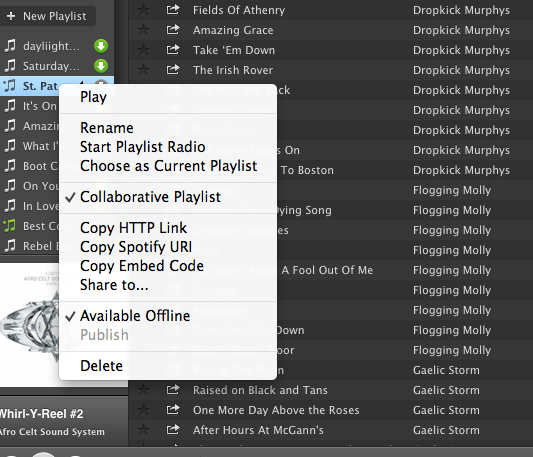 Choose Collaborative Playlist.
You can now find your collaborative playlist on the left sidebar of your profile screen with a green music note next to it. The playlist will not, however appear on your Spotify profile page. As far as I can see, there is no way to add a collaborative playlist to your profile. I believe this is because these playlists are always changing and therefore never really complete. If you figure out a way to publish them and still allow them to be collaborative, please share with us! Because the playlist does not appear on your profile, you need to invite others to see it.
Inviting others to join your collaborative playlist is as simple as sharing the link. You can do this by right clicking (control+click on a Mac) and choosing any of the options shown here:
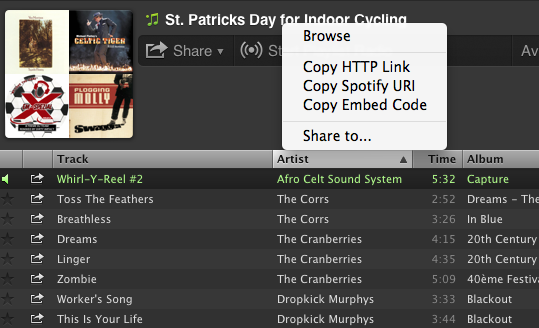
Now you can share your playlists by email or social media sites. Here are a few things to keep in mind when creating collaborative playlists in Spotify:
- Anyone that subscribes to your playlist can add songs, delete songs and change the order of the songs in the playlist.
- Everyone that subscribes to your playlist will see these changes.
- You can turn off the collaborativity of the playlist the same way you turned it on.
- Anyone that gets the link to your playlist can share the link with friends.
ICI/PRO has several collaborative playlists that you can access here.
I've recently created my own collaborative Spotify playlist: St. Patrick's Day for Indoor Cycling. I hope you find some inspiration here for your St. Patrick's Day ride this week! Please subscribe and share your favorites!!