by Christine Hawthorne | Mar 11, 2013 | Instructor Resources, iTunes & Spotify Training, Music, Spotify
 Do you know about Spotify's Collaborative Playlist feature? It's a great way to share playlists with friends, fellow instructors and even members at your gym or club. When you use this Spotify feature, others can share, edit and add to your original playlist.
Sound interesting? It's really pretty simple. Just create a playlist in Spotify as you normally would. Then, right click (control+click if you're a Mac user like me) and you'll see a drop down box like this:
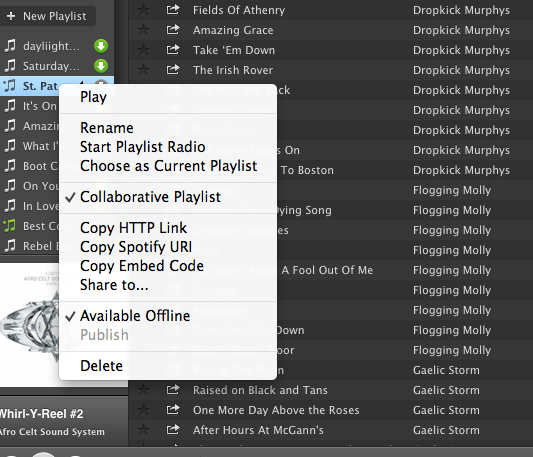 Choose Collaborative Playlist.
You can now find your collaborative playlist on the left sidebar of your profile screen with a green music note next to it. The playlist will not, however appear on your Spotify profile page. As far as I can see, there is no way to add a collaborative playlist to your profile. I believe this is because these playlists are always changing and therefore never really complete. If you figure out a way to publish them and still allow them to be collaborative, please share with us! Because the playlist does not appear on your profile, you need to invite others to see it.
Inviting others to join your collaborative playlist is as simple as sharing the link. You can do this by right clicking (control+click on a Mac) and choosing any of the options shown here:
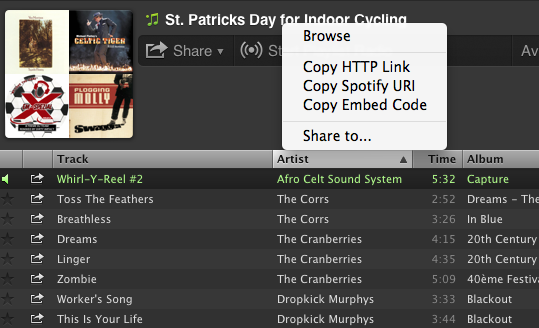
Now you can share your playlists by email or social media sites. Here are a few things to keep in mind when creating collaborative playlists in Spotify:
- Anyone that subscribes to your playlist can add songs, delete songs and change the order of the songs in the playlist.
- Everyone that subscribes to your playlist will see these changes.
- You can turn off the collaborativity of the playlist the same way you turned it on.
- Anyone that gets the link to your playlist can share the link with friends.
ICI/PRO has several collaborative playlists that you can access here.
I've recently created my own collaborative Spotify playlist: St. Patrick's Day for Indoor Cycling. I hope you find some inspiration here for your St. Patrick's Day ride this week! Please subscribe and share your favorites!!
by John | Mar 5, 2013 | Instructor Tech Help, Spotify
No idea why it took them so long, but the Spotify App for iPhones has finally added an Instructor friendly feature that Android users have had (it seems) forever.
If you are running your class on an iPhone you will recognise this frustration right away > the need to go back and forth between the Now Playing screen and the Playlist screen if you want to see what's coming next. Where you can get in trouble is there were too many places where your sweaty fingers could touch and mess everything up.
The Spotify Android App shows the Now Playing track at the bottom of the Playlist screen along with stop/start button and the option to Swipe > advance to the next track. The latest update to the Spotify iPhone App includes this feature now as well 🙂
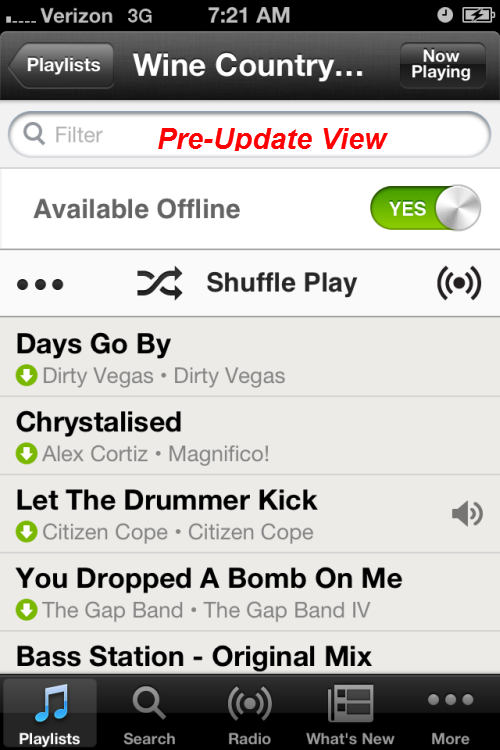
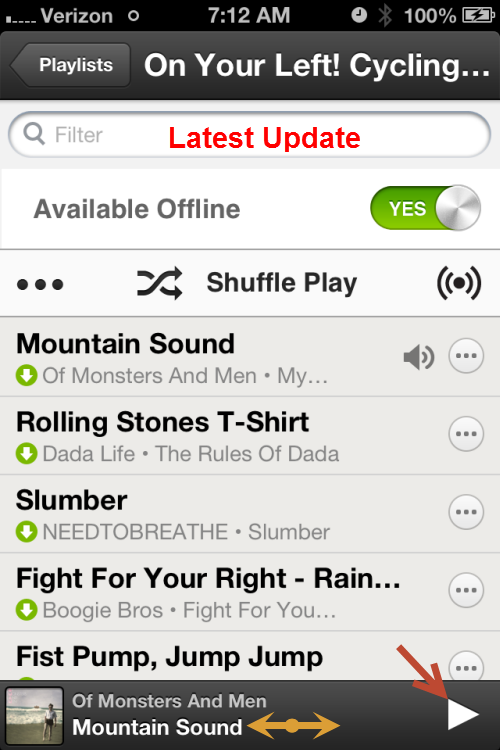
See your playlist and swipe to advance.
Now it's still not perfect – if Spotify would add the track timer to this slider, all us iPhone users could work off of this one screen and stay focused on our classes.
In case you're wondering, those circles with the *** don't bring you to an option to change the order of songs. You still need to do that on your computer.
I don't (yet) have an iPad. If you do and see anything new/cool added recently, please let us know below.
by Amy Macgowan | Jan 24, 2013 | Music, Spotify

I am a laggard, living with an Innovator.
Laggard, Noun – def: one who's hanging back, or falling behind.
I admit it. My internal, unspoken motto has been, ‘if it isn’t broken, don’t fix it’. I did not walk until I was 16 months old- crawling was fine with me. What can I say?
As you might imagine, John has made fun of my music ‘process’ for years. Here is generally how it went:
- Gather CD’s, or order and wait for them from the library
- Listen through them on impossibly long commute to day job
- Note good songs
- Download to itunes
- Make playlists on itunes
- Burn playlist to CD
- Just recently, download playlist to ipod
I started to feel the pain of my laggard like ways. Much like I must have felt when I finally started to walk, I felt the need to update my music process.
My jump into Spotify-land has been so much fun. No more having to order CD’s and wait for them to come in. No more downloading and burning.
The process is so simple. The details on getting started are here. I love to go to Spotify, put in a band or song name and have ALL the titles pop up. I love that my playlist is on my phone. No more CD’s (this is only a problem when I drop my phone in the toilet!) Even more than that, I love saying to my students, ‘If there is a song you would like to hear in class, just let me know and I can pop it into a future ride, no problem!’
Thank you, John, for making fun of me and ultimately making me feel enough pain to update my music process. I am so happy.
If you have not tried Spotify, do. I think you will like it!
by John | Jan 3, 2013 | Instructor Training, Spotify
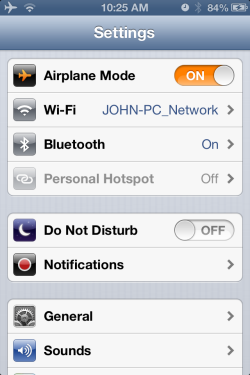
Airplane mode On… WiFi On… Bluetooth On
Comment & question from a brand new ICI/PRO member.
John,
Just a quick hello from the Midwest. I teach cycle at Lifetime Indianapolis and LOVED your suggestion on using Spotify! I am so excited to have a new way to use, create and lets face it steal great song lists!
Quick question for you…do you download to your phone to make your song list available offline or do you use WiFi when using Spotify in class? It seems to take a long time to upload the tunes if I go offline. My concern if I am on WiFi is that someone will text or call me during class. Any suggestions would be great.
Excited to be a part of the ICI/PRO community….Ride on!
Party Marti
Marti asks a couple of really good questions and expresses a common confusion surrounding airplane mode, that I'll paraphrase and respond to here:
- Should you download your playlists to your phone or use the club's WiFi?
- I forgot or didn't leave myself enough time for everything to download to my phone, before running off to teach my class. How do I prevent a call or text from interrupting my class, if I need to use the club's WiFi?
Let's start with the confusion about using airplane mode – I had the same concern when I cut the cord and started using a Bluetooth receiver with my iPhone and worked through it again with Amy's Android.
On either type of device (iPhone/Pad or Droid) turning on airplane mode switches off all connections to the outside world; no cell service, WiFi, hot spot or Bluetooth. But both devises do allow you to turn WiFi or Bluetooth back on, leaving the cellular connection off, preventing those embarrassing calls from interrupting your class.
Should you download your Spotify* playlists to your phone or use the club's WiFi? If at all possible you want your music on your phone for two major reasons…
- You can't depend on a public WiFi to have the connection speed you need to reliably stream your music = possible technology failure that would wreck your class.
- Your playlist may include Local Files – music from your computer that's not available on Spotify = tracks that are Local Files won't play over WiFi, wrecking your class.
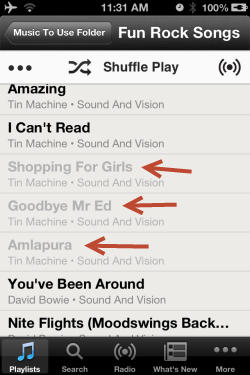
Grey tracks are local and won't play using WiFi
But what if I'm stuck and have no choice but use the WiFi at the club?
Start by turning on airplane mode and then going into the Settings and turning WiFi back on.
Next, Spotify will download (save in offline mode) your playlist from any WiFi. So as soon as you can, connect up and turn Available Offline ON. Spotify downloads in order, starting with track one. Feel free to hit play and start your class without needing to wait for everything to download 🙂
Then pray that your playlist doesn't have any Local Files that won't play and wreck your class. But if it does, just smile and pretend you wanted it to happen.
Lot's more Spotify tips and tricks here.
* That would be the Premium version of Spotify used with the proper App for your device.
by Christine Hawthorne | Dec 12, 2012 | Instructor Resources, iTunes & Spotify Training, Spotify
 When I first upgraded to Spotify Premium back in August, I was excited to try something new, but a little disappointed and apprehensive because it wasn’t as easy as I thought it was going to be. Change is never easy. But I kept at it and now I think I’m able to navigate it quite well. Creating and publishing playlists is the easy part. Muddling through all the little glitches with the system was a little tricky, but once I was able to figure them out, I rarely run into problems anymore. The difficult part, for me anyway, was finding people to follow and finding new music.
I don’t know about you, but I could spend hours listening to music and deciding if I think certain songs should earn a spot on my next playlist. When I first began using Spotify, I really didn't know where to begin. It wasn't like iTunes, (which I had been using forever), so I knew that I needed to find an easy way to use Spotify to get access to music that I could use in my classes. I didn't want to be tied to my computer all night searching for music because I couldn't navigate my way through this new terrain. I wanted to be able to easily find new releases and I wanted to see what other instructors were using in their playlists. So I set a goal to find some easy and time-saving ways to search for new music. I think I succeeded. Here are few tips to add to your arsenal or to help you if you’re just getting started:
- Find people to follow and subscribe to their playlists. I explain this in detail in my last ICI/PRO post.
- Don’t overlook the ‘What’s New’ Tab at the top left of your main sidebar on your profile screen. Click on this tab and you’ll find a customized page for you with new releases, top playlists, top tracks, trending playlists, and featured Spotify apps.
- Subscribe to playlists that ‘refresh’. I have found a few playlists to subscribe to that help me to keep up with the best new releases as well as the hottest songs in the country at the moment. Here are a few that I subscribe to: Billboard Hot 100; New Release Tuesdays and New Releases on Spotify
- And speaking of new releases, if you like to use them in your playlists, learn to love Tuesdays! Most of the new releases come out on Tuesdays, so check for updates on your main page and be the first one to listen!
- ‘Like' Spotify on Facebook. You'll get really great updates on new music and bands, helpful tips and general updates.
- Sign up at Sharemyplaylist.com. I have not used this service as a means of sharing my playists (yet), but they DO email me a newsletter every week with seven of their top playlists, all of which have been published in Spotify. So with the click of a button, you can listen and subscribe. I can't say enough about this resource. I always find a TON of great music here.
In addition to the ideas mentioned above, I think in the not too distant future you may see some changes over at Spotify that will make your music discovery a little bit easier. Not only has Spotify overhauled
their website, but they will very soon be unrolling some new and exciting changes. If you used iTunes Ping, you may find this to be a good replacement. See what it's all about by clicking the photo below:
How do you find music to use in your classes? If you have a great resource, please share in the comment section.
by Christine Hawthorne | Nov 13, 2012 | Instructor Tips and Tricks, Instructor Training, iTunes & Spotify Training, Music, Spotify

After some poking around and exploring, I think I have discovered the best way to find and follow other people on Spotify. Finding, following and adding people to your ‘favorites’ will in turn give you more music to explore and ultimately use in your cycling profiles.
Spotify has clearly not made the task of finding other people or cycling instructors to follow an easy one. If you were an iTunes Ping user, you remember how simple it was to find other instructors and to see their playlists and what they were purchasing and listening to. In Spotify you can do most of these things. You just have to work a little harder at it. Once you have found some people with similar musical tastes, you’ll find the process of searching for new music much simpler.
There are a few ways to go about searching for and finding people to follow in Spotify:
- Since Spotify and Facebook are connected, you can follow friends that are already on Facebook. While this one is simple, it’s my least favorite option. First of all, you actually need to be ON Facebook. I realize that most of you probably are, but I’m sure there are some of you that either don’t have a Facebook account, or, like me, use it very sparingly. Another reason I’m not a fan of the Facebook method is because your Facebook friends may not be listening to the kind of music you want to use in your cycling playlists. You’re looking for other instructors with similar musical tastes. I suppose you could ‘friend’ all of the cycling instructors in the world on Facebook, but then you have a bunch of people you don’t even know looking at your personal Facebook page. If that doesn't bother you, then I guess using Facebook is one way to find friends to follow in Spotify.
While the above mentioned techniques will surely work, I think I’ll stick with my highly un-scientific, yet effective (not to mention easy and fast) way to find people to follow on Spotify:
- Find one person that has a playlist you like and head on over to their profile. Let’s use my profile to get you started: http://open.spotify.com/user/chrispins
- Once you have arrived on my profile page, take a look at some of my ‘published’ playlists. Not only will you see my original playlists here, but you will also see playlists that I have subscribed to. These are playlists from other members. Here is a picture of part of one of my original playlists, posted on my profile page:
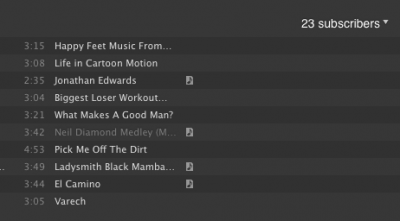
- In the upper right corner of these profiles, you can click on the ‘subscribers' and a drop down list will appear with the profiles of all of the people that have subscribed to my playlist. There you go! 23 new people (mostly cycling instructors) to follow! Click on their names to go to their profile pages, and check out what they are publishing and subscribing to. If you like what you see, click ‘add’ in the upper right hand corner of their profile. This will allow you to see what they are listening to and publishing in a scrolling list on the side of your profile. Hint: After you click ‘add’, you will have an option to add them to your ‘favorites’. I recommend doing this because it allows you to access their profile even if they are not actively listening to or using Spotify at the same time that you are. Their latest activity will always be available in the upper right side of your profile.
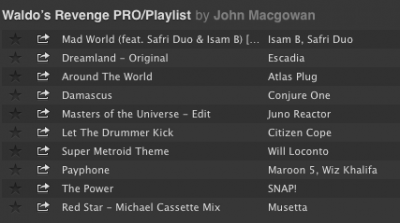
- Now that you have found some other profile pages, you can continue to explore the ‘followers’ of the playlists that they have published or subscribed to. Many people have not published many playlists, but have ‘subscribed’ to other people’s playlists. In this case, you can go directly to the profile of the person that created the original playlist by clicking their user name next to the playlist title as in this example: This is a partial shot of a playlist that I subscribed to by John MacGowan:
- Just click on John's name next to the playlist title to go directly to his profile.
- Here are some links with some basic tutorials that you might find useful:
Can I Add Any Spotify User To My People List?
How To View A Profile From Within Spotify
Spotify Social Basics
So, what are you waiting for? Give yourself a little time and start exploring more music on Spotify. Once you start finding people to follow, you might find it hard to stop!
**Feel free to share your Spotify profile link in the comment section to get the ball rolling!